Support and customer success
Answer once, then send the guide the next twenty times. Blur the account details before it leaves your machine.
Record a process once. Wombat captures every click as a screenshot with the instruction already written — “Click Settings”, not “Click here” — then stitches them into a guide you can edit, blur and share.

 How to Enable Mobile Hotspot on Windows 11
Recorded with Wombat · 6 steps
How to Enable Mobile Hotspot on Windows 11
Recorded with Wombat · 6 steps
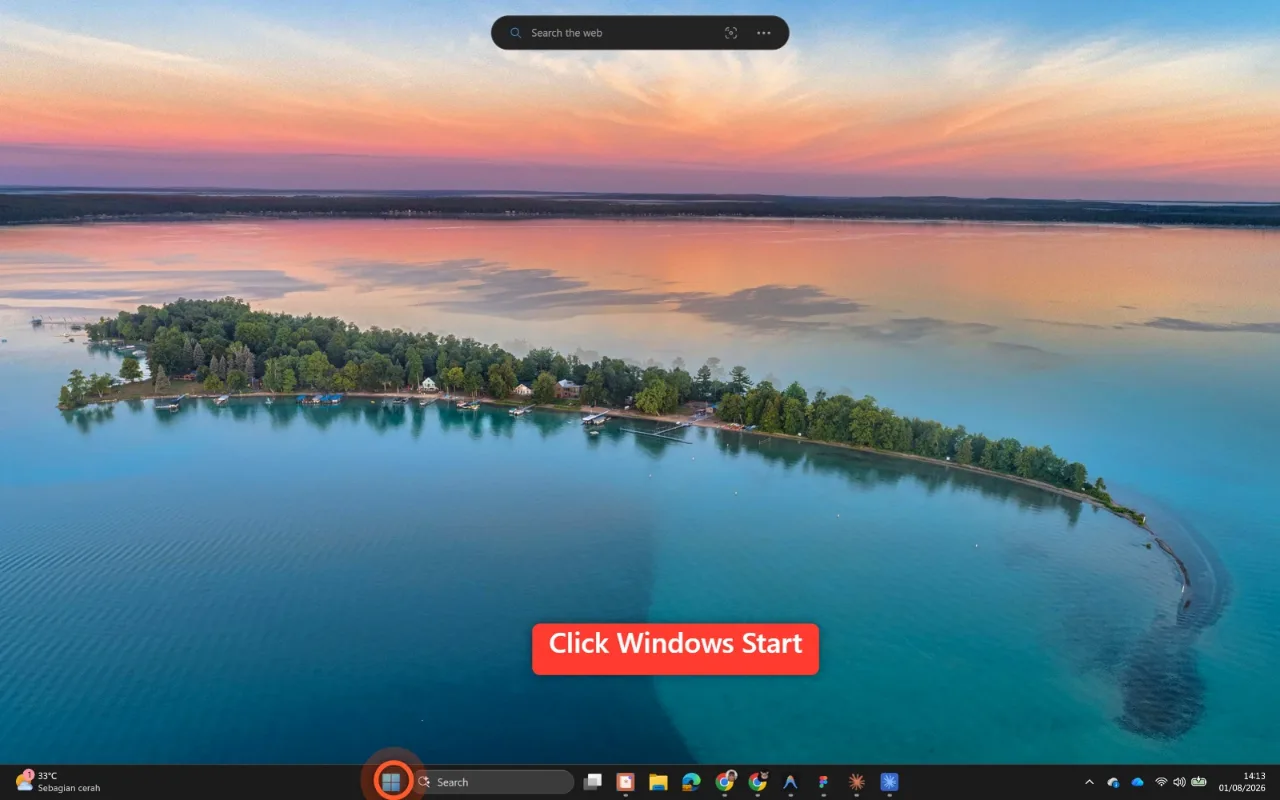
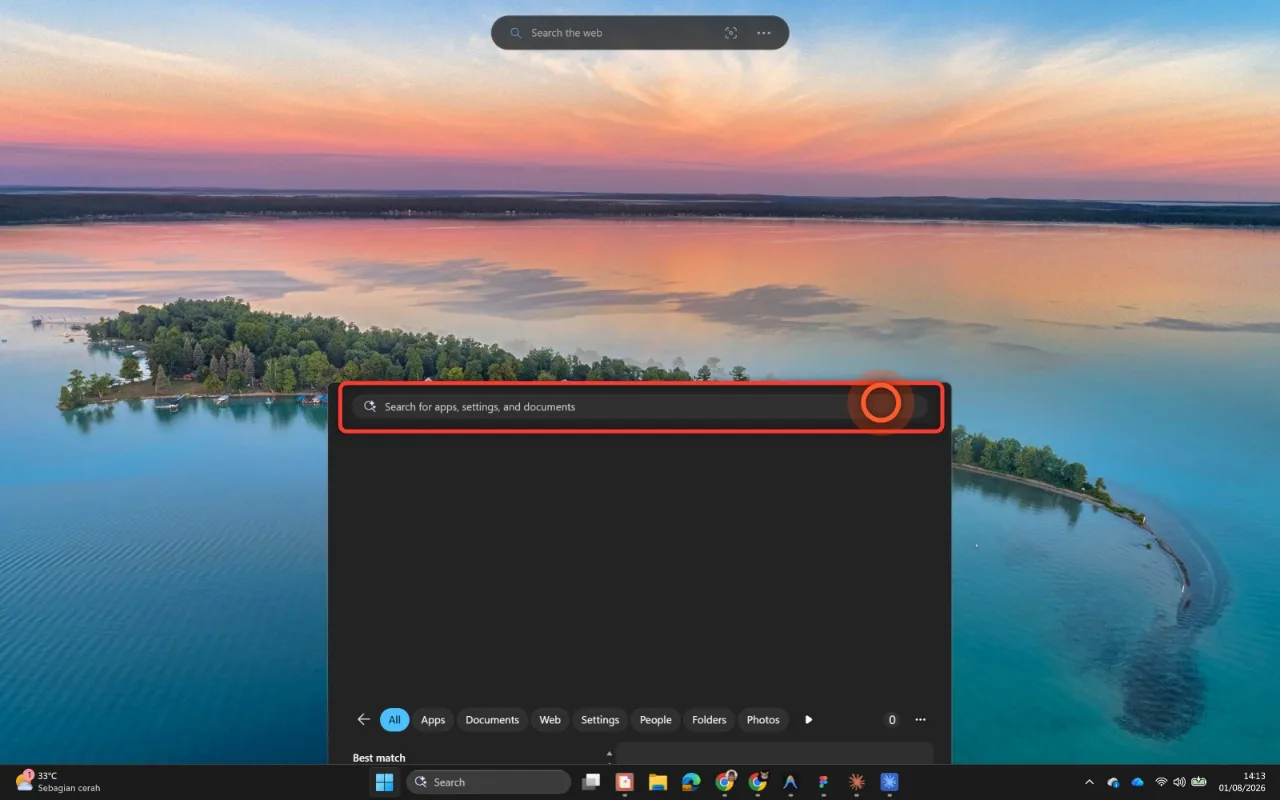
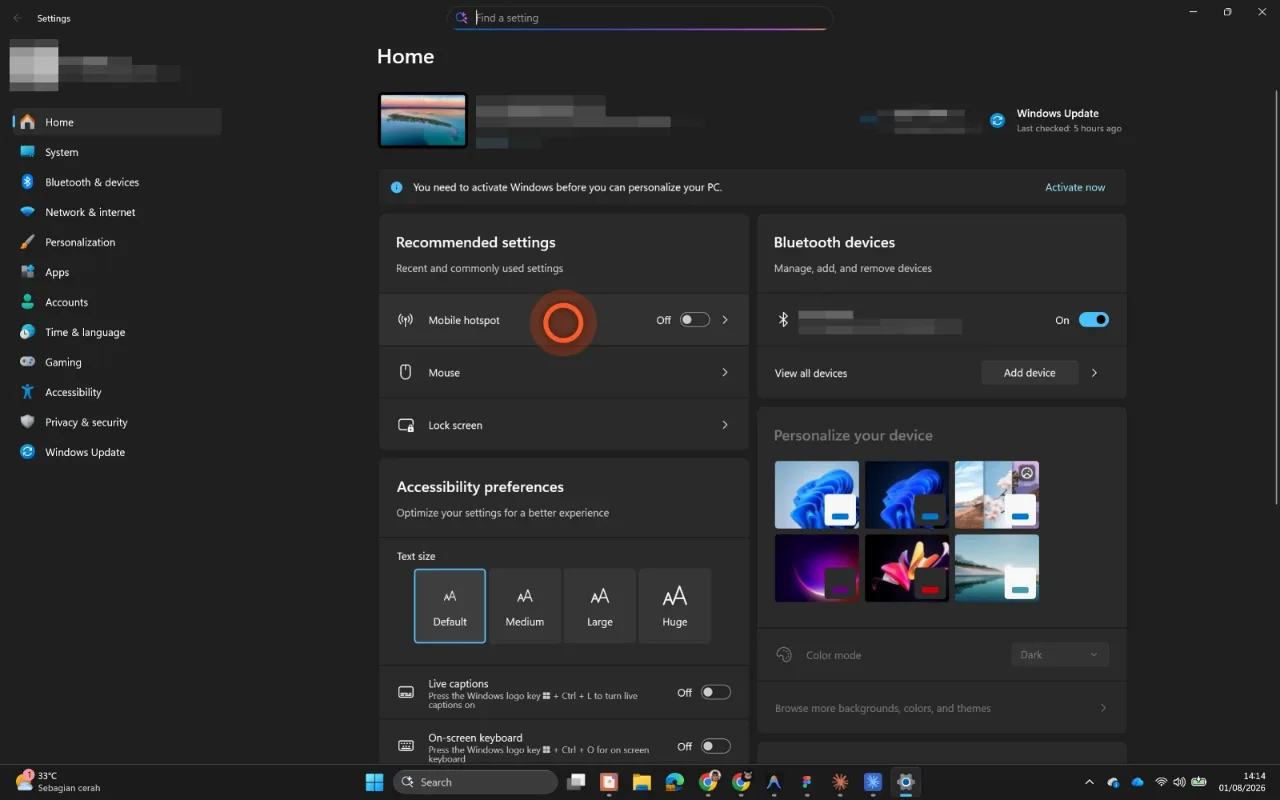
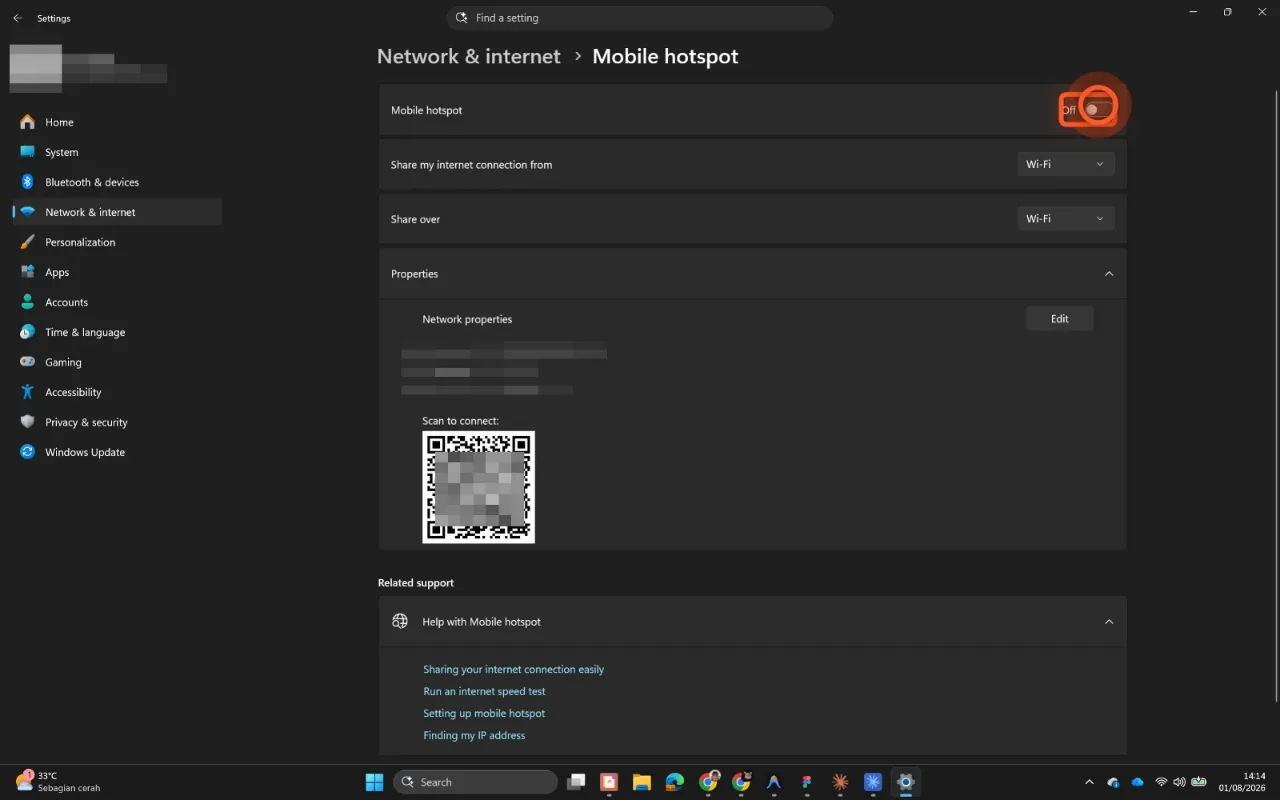
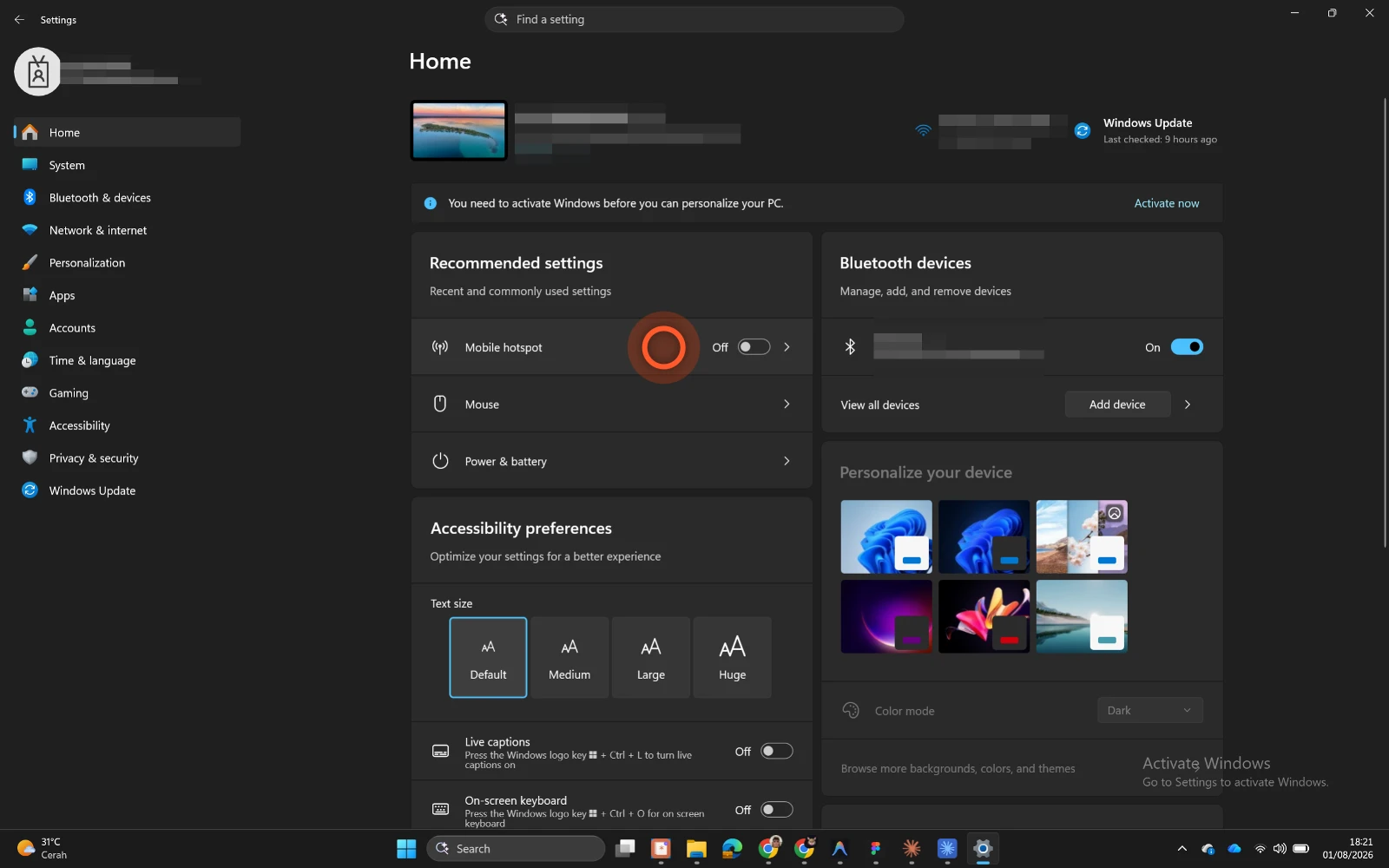
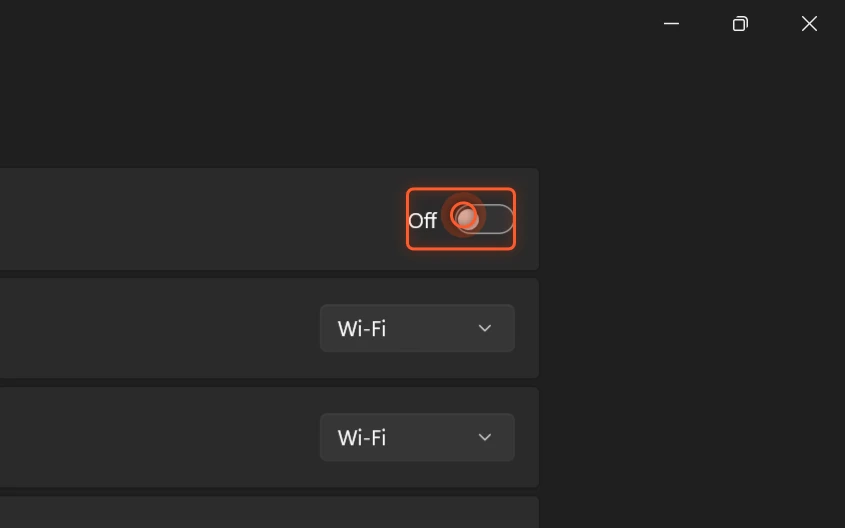
Press record, then use the panel below as if it were a real application. Wombat writes the guide as you go — no download, nothing canned.
Delegate approvals
Sends your queue to your backup while you're away
Annual
Accrued 20 · taken 12
Carry-over
Expires 31 Mar 2027
2 – 6 Jun 2026
Annual · approved by R. Halim
18 Apr 2026
Sick · certificate on file
A page can only record itself. The desktop app does this for every application on your machine — Excel, your browser, internal tools.
Press Start recording, then book some leave in Meridian HR — the steps appear here as you go.
That's a guide.
Every step has a screenshot, a marker on what you clicked, and an instruction written from the control's own name — exactly what the desktop app produces, for any application.
Download WombatDocumentation usually dies because writing it is a second job. Wombat makes the recording the writing.
Hit record and do the thing you'd otherwise be explaining over someone's shoulder. Wombat shrinks to a small floating pill — invisible to its own screenshots — so it never gets in the shot.
Every click, keystroke and scroll becomes a step: a screenshot zoomed to what you clicked, the control outlined, and the instruction already written from the control's real name.
Reword anything, reorder, drop a step, blur what shouldn't be there, draw an arrow — then export one self-contained HTML file.
A click on its own is only a coordinate, and a guide written from coordinates leaves the reader reverse-engineering the screenshot. Wombat asks Windows' accessibility layer what actually sits under the cursor, so the step arrives already written — “Click Save and close”, not “Click here”.
On a spreadsheet-and-dashboard test set, generic “Click here” steps went from 48 out of 48 to zero out of 35.
From standard procedures to client handovers — turn “let me show you” into a clear, step-by-step visual guide you can send in seconds.
Answer once, then send the guide the next twenty times. Blur the account details before it leaves your machine.
The internal tool nobody documented, recorded in the time it takes to use it once. New starters get the screenshots, not a meeting.
Procedures that have to match the software as it actually is today, including the desktop and legacy tools a browser extension can't see.
Hand a client the process along with the work. Self-contained HTML, images inside it, nothing to host and no account for them to make.
Document VPN setups, server configs, ERP portals and legacy tools. Not restricted to a browser tab — every desktop utility is captured just as easily.
Capture exact steps to reproduce an issue, complete with click targets and typed text. Helps developers understand and fix bugs without the back-and-forth.
Full-screen capture means whatever is on screen ends up in the guide. Wombat treats that as the default problem to solve, not an add-on.
Pixelation replaces each block with the average of the pixels it covers — not a downscale that can leave original pixels behind.
Captures any application, not only browser tabs — desktop tools, spreadsheets, internal clients, the lot.
A whole field entry becomes one step with the text that was actually entered — not one step per keystroke.
Each step crops to the control you clicked so it's readable, without ever cropping the stored screenshot. Toggle per step or for the whole guide.
Call out what the automatic marker can't, in your choice of colour and thickness. All of it is burned into the export.
Hide a region as an overlay while you work, then destroy the pixels on disk when you're ready to share.
One file with the images inlined — no folder of assets to lose. A ten-step guide of full-resolution screenshots comes out around 1.5 MB.
Missed something? Wombat hides itself, waits for you to bring the app forward, and inserts a fresh screenshot where you want it.
Drag the click marker, drop a mis-detected outline, rewrite any instruction. The automation is a head start, not a verdict.
Guides are plain files in your user folder. Back them up, sync them, delete them — they're yours.
One payment, no subscription, no account. Your key works offline and never expires.
Already bought? Get your key.
Free of accounts, and free to use. Install it, record something, keep the guide.
The normal way in: installs to your user folder, adds a Start-menu entry, and updates itself when a new version ships.
Download for WindowsApple silicon by default, with a separate Intel build. Recording, editing, blur and export all work — see the note below on step labels.
Download for macOSThe builds aren't code-signed yet. On Windows, SmartScreen will say “unknown publisher” — choose More info → Run anyway, and that's the whole of it.
On macOS, Gatekeeper will say the developer cannot be verified. If you downloaded Wombat from this site and the message is the normal unidentified-developer warning, try opening it once, then go to System Settings → Privacy & Security → Open Anyway. If macOS says the app will damage your computer or malware was detected, do not bypass that message—delete the file and contact us.
That is far too much to ask of anyone, and it is temporary: a Developer ID certificate and notarisation remove every step above. They cost money, and they are the first thing Pro pays for.
Smart step labels are Windows-only today. They're built on Windows UI Automation. On macOS every step falls back to generic text like “Click here” — everything else works, but it's the reason the Windows build is the recommended one.
No. Recording, editing, redaction and export all happen on your machine, and guides are stored as plain files in your user folder. Wombat talks to one address: its public releases page, to check for a new version. If there is one it downloads in the background, and asks before installing anything.
This website is a separate thing from the app, and it does keep one number: the clicks people make here — pressing record, and anything you click while it's running — add up to a shared total. There's no identifier attached to it, and it says nothing about anything you record with the app itself. Even writing to us doesn't touch this site — those buttons open your own mail client, so the message goes from you to us and past nothing in between.
Licences are the one other thing this site records. Payment goes through Pakasir, which never tells us who paid — so if you buy, the email address you type on this page is stored here first, against an order number, and that's what the key gets issued to. It's also what lets you get the key back if you lose it. If you start a purchase and don't finish it, the address sits there unused and is deleted. Nothing is ever sent to it: there's no mailing list here, and no mail server either — you collect the key yourself on the key page. The app itself never sends any of it. A licence is checked by verifying its signature on your own machine, so activating one works with the network switched off and Wombat has no idea whether you ever did.
Anything on screen. Wombat captures the display and hooks input system-wide, so desktop software, spreadsheets and internal clients record exactly like web apps do. Label quality depends on how well an app exposes accessibility information — native Windows and Chromium-based apps are generally good; some canvas-drawn or Java/Qt interfaces expose almost nothing and fall back to generic text.
Password fields are never read: the accessibility helper refuses them at the source, and the step text is redacted again independently, so a value can't leak through either path. For everything else there's manual redaction — drag over a region to pixelate it, and “apply permanently” to rewrite the file so the original pixels are gone. Exports always bake redactions in.
Recording, editing, redaction and export are free, with no account or trial. The free plan keeps up to five guides at once; deleting one immediately lets you record another. Exported guides carry a small “Made with Wombat” line. Pro removes the guide cap and branding, is a one-off purchase, and includes a year of updates — after that year the version you have keeps working forever, and so does your key. It's Rp 55.900, paid with QRIS, an Indonesian e-wallet or a bank transfer, plus the payment provider's own small fee. If none of those work where you are, write to us and we'll arrange it.
Nothing is time-limited, nothing stops working, and nothing about your privacy depends on paying: redaction in particular is free and always will be. Hiding your customer's data is not a feature to sell you.
Because it isn't code-signed. SmartScreen flags binaries from publishers it doesn't recognise. Only continue if you downloaded Wombat from this official site, then choose More info → Run anyway. You can also verify the file against the checksum on the release page.
Recording, screenshots, the editor, redaction and export all work. Smart step labels don't — they're built on Windows UI Automation, so on macOS every step reads “Click here” until the equivalent native helper is written. macOS also needs Screen Recording and Accessibility permissions granted in System Settings.
The build is also unsigned, so Gatekeeper may require Open Anyway under Privacy & Security. Never bypass a message that explicitly says malware was detected or the app will damage your computer. The permanent fix is a signed, notarised build.
All of it. Rewrite any instruction, reorder or delete steps, insert a step you forgot, drag the click marker to the right spot, drop a mis-detected outline, and toggle the zoom per step or across the whole guide.
A single self-contained HTML file, with every image inlined — so it renders from a mailbox, a shared drive or a wiki attachment with nothing else alongside it. That's deliberately the only format, rather than a half-decent version of four.
No form, no ticket portal, no account. Press one to write from your own mail client, or copy the address below.
Wombat records on your machine and keeps it there — wherever in the world that is. Nothing you write here passes through this site; the mail leaves from your machine too.
Or write to redesign.alfa@gmail.com
It goes to a person, not a queue. Saying which version of Wombat you're on and what you were doing at the time is most of what makes a bug fixable.